Appearance
HTTP Webhooks
The HTTP Webhooks integration creates virtual devices backed by local webhooks and optional local HTTP requests.
What You'll Need
- A local device, service, script, or application that can send HTTP requests to Bridge.
- Optional local HTTP endpoints for commands that Bridge should call.
- A trusted local network path to the Bridge admin service.
Local Webhook Exposure
Webhook endpoints are intended for trusted local-network use. Do not expose Bridge directly to the internet.
Setup
- Open the Bridge admin UI.
- Select Add Device.
- Choose HTTP Webhooks.
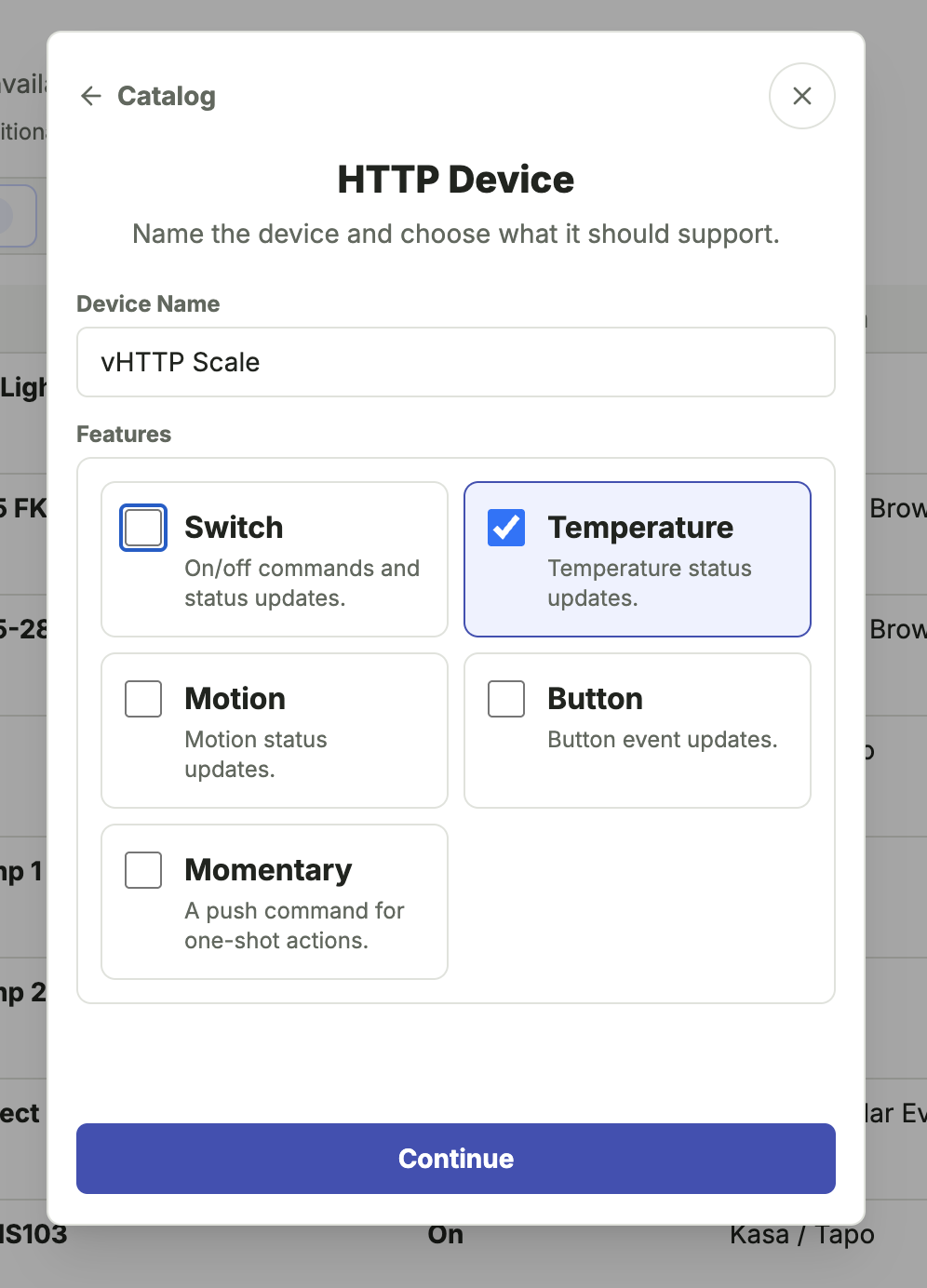
- Name the virtual device.
- Choose one or more features.
- On Configure Commands, optionally enter URLs that Bridge should call when command-capable features are used. See Outbound Webhooks below.
- Save the generated webhook paths for your local device, service, or script. See Webhook Paths below.
If you are only using the device as a virtual device or only using inbound webhooks to update state, leave the command URL fields blank.
How It Works
HTTP Webhook Devices can be used in a few different ways, and those patterns can be combined:
- Virtual device state: create a device with no external URLs configured. For example, a Switch feature can be toggled from SharpTools dashboards or rules, and Bridge keeps the on/off state internally.
- Inbound webhooks: another local device, script, or service on the same LAN or network as Bridge calls the generated Bridge webhook paths to update the device state or emit button events.
- Outbound webhooks: for command-capable features, Bridge can call another URL when a SharpTools dashboard or rule runs a command like
on(),off(), orpush().
Inbound webhooks update Bridge state only. They do not call the outbound webhook URLs, which helps avoid loops when the external system is reporting its own state back to Bridge.
Resources and Capabilities
Bridge creates one virtual device resource for each HTTP Webhook Device.
Supported features include:
| Feature | What It Adds | Inbound Webhooks | Outbound Webhooks |
|---|---|---|---|
| Switch | on() and off() commands with stored on/off state. | /switch, /switch/on, /switch/off | on(), off() |
| Temperature | Temperature Measurement attribute. | /temperature | None |
| Motion | Motion Sensor attribute. | /motion, /motion/active, /motion/inactive | None |
| Button | Button state and event updates with optional button number data. | /button | None |
| Momentary | push() command for one-shot actions. | None | push() |
The setup flow creates simple outbound POST requests for switch on/off and momentary push URLs when those URLs are provided.
Webhook Paths
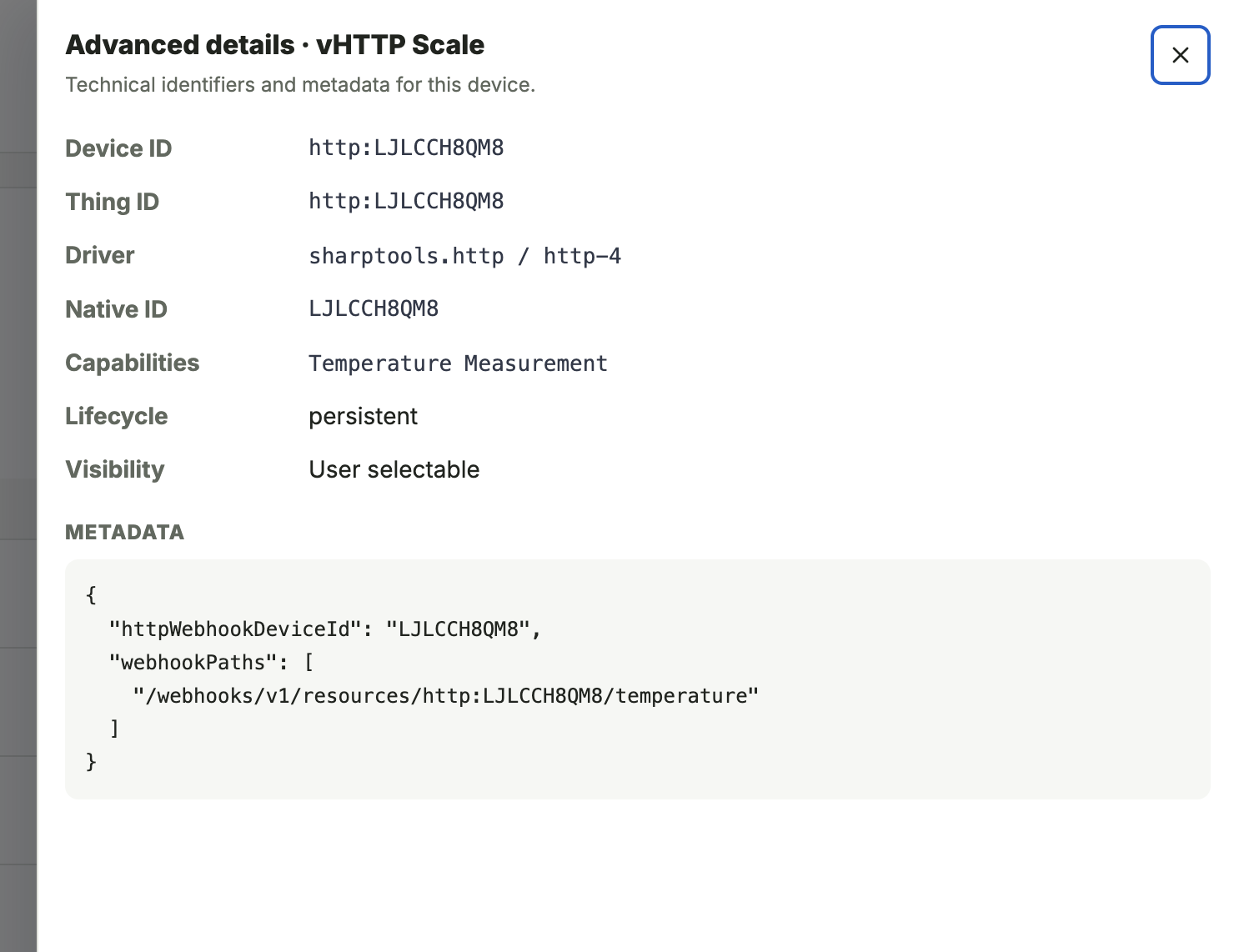
Webhook paths are generated for the device and selected features. Common paths include:
/webhooks/v1/resources/{resourceId}/switch/webhooks/v1/resources/{resourceId}/switch/on/webhooks/v1/resources/{resourceId}/switch/off/webhooks/v1/resources/{resourceId}/temperature/webhooks/v1/resources/{resourceId}/motion/webhooks/v1/resources/{resourceId}/motion/active/webhooks/v1/resources/{resourceId}/motion/inactive/webhooks/v1/resources/{resourceId}/button
Use the Bridge host and port with the generated path. The full base URL looks like this:
text
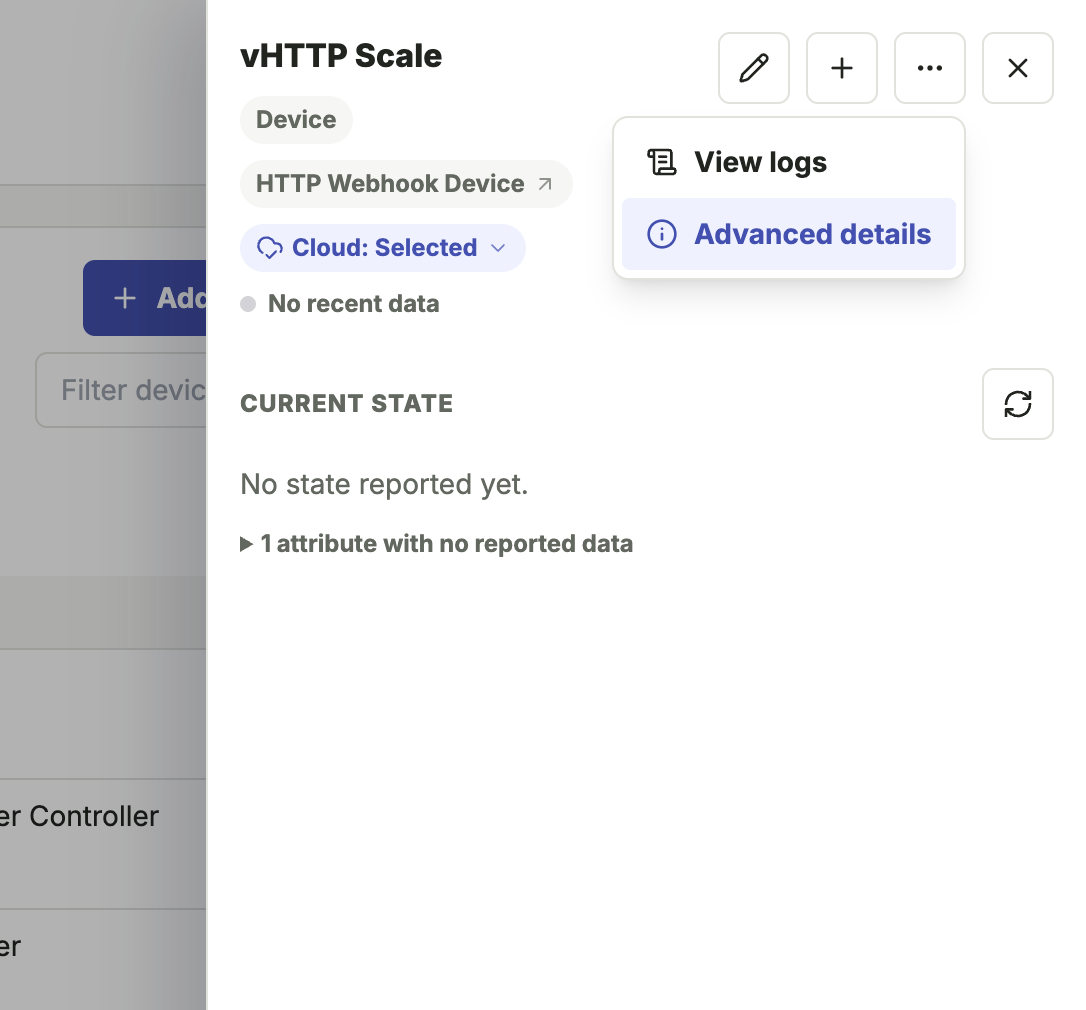
http://<bridge-host>:8787/webhooks/v1/resources/http:<uniqueId>If you forget the paths, open the HTTP Webhook Device in Bridge and check Advanced Details. The paths also follow the format above, so you can reconstruct them from the resource ID.
Updating State with Webhooks
Webhook paths accept GET, POST, PUT, and PATCH requests. Values can be sent as query parameters, JSON bodies, form-encoded bodies, or plain text bodies.
The examples below show the feature path only. Prefix them with the full base URL shown above.
Switch
Use the convenience paths when the desired state is already known, or send the state to the base switch path.
http
POST /switch/on
POST /switch/off
http
GET /switch?value=onhttp
POST /switch
content-type: application/json

{ "value": "on" }
Supported switch values:
| Resulting state | Accepted values |
|---|---|
on | on, true, 1 |
off | off, false, 0 |
Alternative value keys
Use value for new integrations. Bridge also accepts switch, state, or status for compatibility with simple webhook senders.
Temperature
Temperature updates require a numeric value. Values are currently interpreted as Celsius (C).
http
GET /temperature?value=10http
POST /temperature
content-type: application/json

{ "value": 10 }
http
POST /temperature
content-type: application/x-www-form-urlencoded

value=10
http
POST /temperature
content-type: text/plain

10
Supported temperature values:
| Attribute | Accepted value |
|---|---|
temperature | Any numeric value, such as 10 or 21.5 |
Alternative value keys
Use value for new integrations. Bridge also accepts temperature or temp.
Temperature Units
The HTTP Webhook Device currently labels this attribute as Celsius (C). It does not accept a unit or scale parameter and does not convert from the Bridge location temperature setting. Some workflows may use this as a simple numeric value and ignore the displayed unit.
Motion
Use the convenience paths when the desired motion state is already known, or send the state to the base motion path.
http
POST /motion/active
POST /motion/inactive
http
GET /motion?value=activehttp
POST /motion
content-type: application/json

{ "value": "active" }
Supported motion values:
| Resulting state | Accepted values |
|---|---|
active | active, motion, detected, true, 1 |
inactive | inactive, clear, none, false, 0 |
Alternative value keys
Use value for new integrations. Bridge also accepts motion, state, or status.
Button
Call the button path to update the button state and emit a button event.
http
POST /button?button=pushed&buttonNumber=1http
POST /button
content-type: application/json

{
  "button": "held",
  "buttonNumber": 2
}
http
POST /button
content-type: application/x-www-form-urlencoded

button=double&buttonNumber=1
http
POST /button
content-type: text/plain

pushed
Use query parameters, JSON, or form-encoded data when you need to include buttonNumber. Plain text bodies are useful for the button value only.
Button numbers default to 1. If a webhook reports a higher buttonNumber, Bridge updates the device's numberOfButtons state so the device can represent multi-button controllers.
Supported button values:
| Resulting button value | Accepted values |
|---|---|
pushed | pushed, push, tap, tapped, pressed, press, short_release, shortrelease, release, released, or no button value |
held | held, hold, long_hold, longhold, long_press, longpress, long_release, longrelease |
double | double, double_tap, doubletap, double_tapped, doubletapped, double_short_release, doubleshortrelease |
Alternative event keys
Use button for new integrations. Bridge also accepts event, lastEvent, value, or state for compatibility with existing webhook senders. Unrecognized values default to pushed.
Outbound Webhooks
The optional command URL fields are for HTTP requests that Bridge should send when a command runs from SharpTools. These are especially useful for LAN-only endpoints that SharpTools Cloud cannot reach directly.
- On Command URL: called with
POSTwhenon()runs. - Off Command URL: called with
POSTwhenoff()runs. - Push Command URL: called with
POSTwhenpush()runs.
For example, if a Switch feature has an On Command URL and Off Command URL, tapping the switch tile in SharpTools can update the Bridge device state and call the matching URL from the Bridge host.
Outbound webhook URLs can point to another local LAN service or to an internet endpoint. If you call an internet endpoint, that service will see the request coming from the network where Bridge is running, similar to any other outbound web request.
Inbound webhook paths do not trigger these outbound webhook URLs. For example, calling /switch/on updates the Bridge switch state to on, but it does not call the configured On Command URL.
Common Patterns
Virtual switch only
Create a device with the Switch feature and leave both command URLs blank. The switch can be used in SharpTools dashboards and rules, and Bridge stores the on/off state internally.
Local status endpoint
Create a device with a feature like Temperature or Motion, then have another local system call the generated webhook path when the value changes.
Dashboard button for a local HTTP action
Create a device with the Switch or Momentary feature and configure the command URL. When SharpTools runs the command, Bridge sends the HTTP request from your local Bridge host.
Two-way local control
Configure outbound webhook URLs so SharpTools can control another local system. Also have that system call the inbound webhook paths when its real state changes. This keeps SharpTools and Bridge updated without causing command loops.
Notes and Limitations
HTTP Webhook Device is best for simple local workflows. For a richer integration with discovery, credentials, device-specific commands, custom headers, request bodies, or complex state mapping, a native driver or Groovy Labs package may be a better fit.
Outbound webhook URLs configured during setup are simple POST requests. Bridge treats non-2xx responses as command failures.