Appearance
Troubleshooting Bridge
The Bridge UI includes local logs and diagnostics so you can troubleshoot without relying only on terminal output.
Check Bridge Status
Open the local Bridge UI:
text
http://<bridge-host>:8787/Start with:
- Overview for high-level setup status.
- System > Cloud Connection for SharpTools pairing status.
- System > Updates for update checks.
- System > Info for runtime and network details.
- System > Logs for troubleshooting details.
Logs
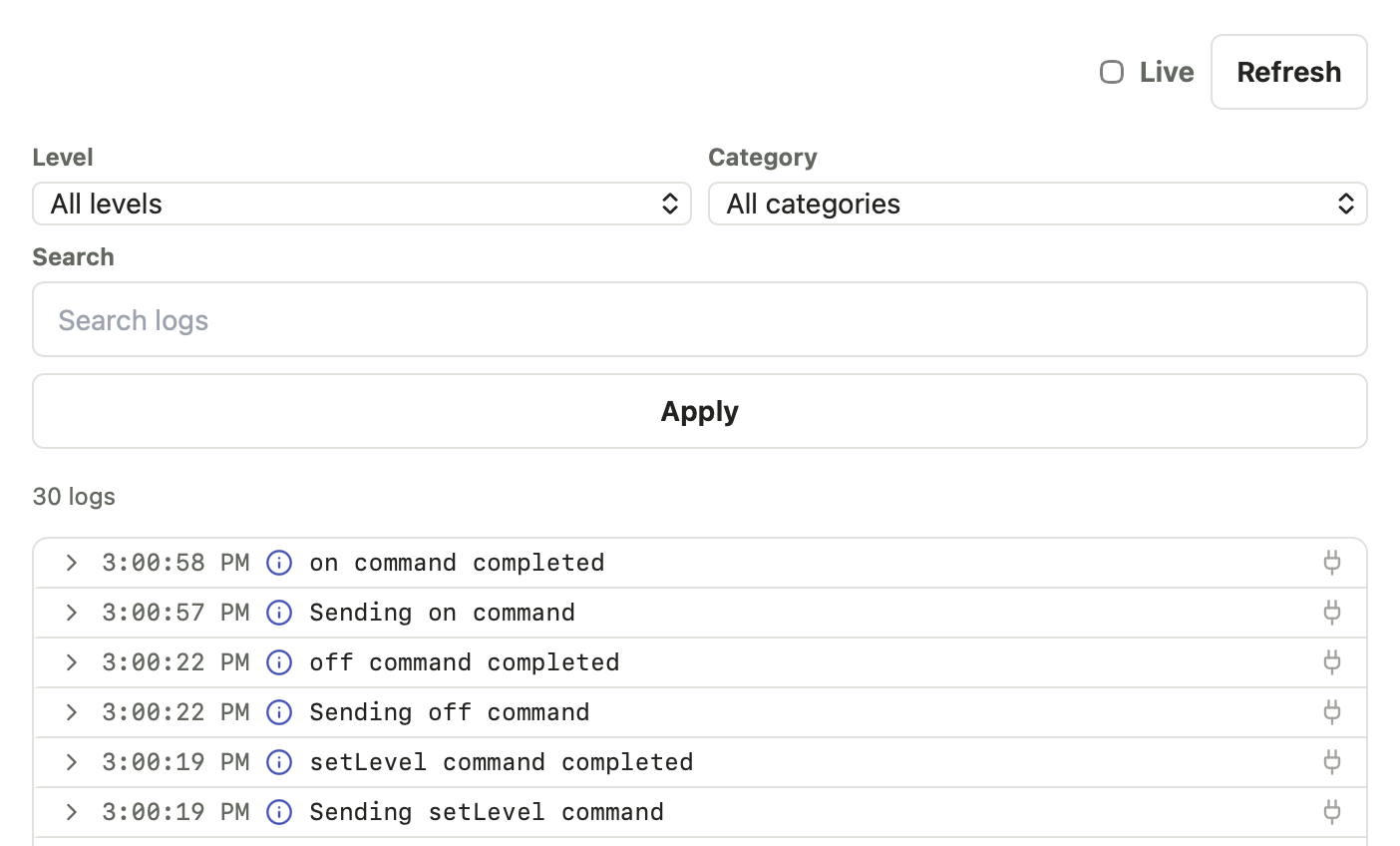
Logs are stored locally and can be reviewed from System > Logs.
The log viewer provides options to filter by level and category or to search for specific text.
TIP
Tap the Live checkbox to view a live stream of logs as they are processed
Use logs when:
- Pairing fails.
- A device does not appear after Cloud Sync.
- A command fails.
- Discovery does not find a local device.
- An integration setup flow fails.
- Groovy Labs runtime installation or compatibility checks fail.
VIEW LOGS FOR SPECIFIC DEVICE OR INTEGRATION
When viewing an individual device or integration detail panel, you can tap the ... button and select View Logs to view the logs scoped to that particular device or integration
Discovery Issues
Local discovery can be affected by:
- Docker networking mode.
- Docker Desktop port mapping.
- VLANs or guest networks.
- Firewall rules.
- mDNS or UDP broadcast limitations.
- Devices on a different subnet.
When discovery fails, try:
- Use Linux host networking if running Docker on Linux.
- Confirm the device and Bridge host are on the same local network.
- Try manual host or IP setup if the integration supports it.
- Check integration logs for discovery errors.
Cloud Sync Issues
If a Bridge resource does not appear in SharpTools:
- Confirm Bridge is connected in System > Cloud Connection.
- Confirm the resource is selected for Cloud Sync.
- Run a manual sync.
- Check System > Logs for cloud or sync errors.
- Check the integration detail logs for local device errors.
Command Issues
If a command from SharpTools does not work:
- Confirm the Bridge resource is still available locally.
- Try the command from the Bridge UI if available.
- Check the resource or integration detail logs.
- Check System > Logs for command errors.
- Confirm the device is still reachable from the Bridge host.
Docker Issues
For Docker installs, check:
- The container is running.
- The data volume is still mounted.
- The Bridge UI port is reachable.
- Host networking is enabled when needed for discovery.
- Bind mount permissions allow UID
10001to write to/data.
Useful commands:
bash
docker ps
docker logs sharptools-bridge
docker compose pull
docker compose up -d
Reset and Recovery
Bridge stores important local state in its data directory.
Do not delete the data directory unless you intentionally want to reset pairing, integrations, runtime state, secrets, and logs.
If you are troubleshooting a serious issue, capture logs before resetting.
What to Include in Feedback
When reporting an issue, include:
- Bridge version.
- Install method.
- Host operating system.
- Docker networking mode, if using Docker.
- Integration or device being tested.
- What you expected.
- What happened instead.
- Relevant screenshots or logs.